
Website Help/Forgotten Password
Forget Your Password?
If you've lost or can't remember your password, select "Please log in" at the top right of the website homepage. Select “Forgot password?”. Enter your email address. We will send you an email message that will instruct you to reset your password.
_______________________________________________________________________________________
Below you will find general information about accessing and maintaining your website account. All of these member settings can be located in the "Account" menu located at the top right of the website homepage. If you're logged in, just click on your name to see the menu. If you have additional questions about the website, please use the "contact us" link, and select recipient Webmaster.
Change Your Password
To change your account password, go to the Member Settings page. You must be logged in to
access this page. Go to the Password tab, type your New Password, and select Save.
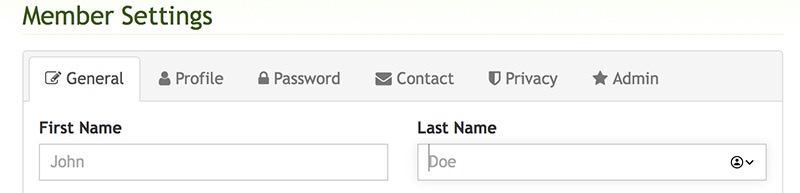
Update or Complete Your Account Information
To change your account information, go to the Member Settings page. You must be logged in to
access this page, where you can set your name, contact information, profile photo, bio, social
links, and more.
Change Your Password
To change your account password, go to the Member Settings page. You must be logged in to access
this page. Go to the Password tab, type your New Password, and select Save.
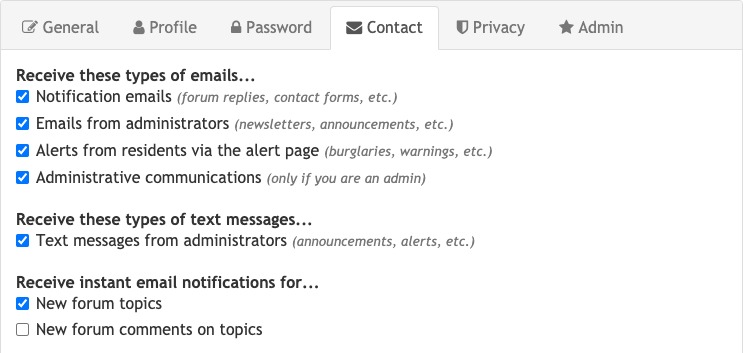
Update Your Contact Preferences
Want to make sure you receive official messages, alerts, and notification of new forum topics?
On the Member Settings page, go to the Contact tab and set the options for the email you'd like to
receive. We recommend the settings shown here. Save your selections.
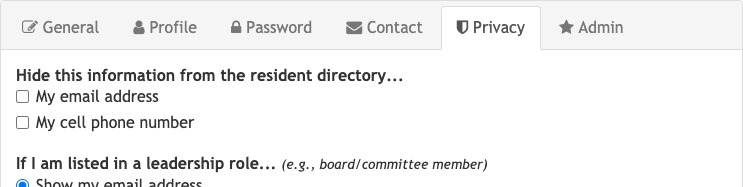
Update Your Privacy Settings
To exclude your contact information from the community directory, go to the Member Settings
page. On the Privacy tab, adjust the settings to hide your contact information or modify how
it appears on official board and committee listings. Don't forget to select Save.
Add/Update Household Member Information
To add or update information about your household, go to the Account Settings page. You can
change the address and home phone number of your property(/ies) in the community. You
can also identify additional adult members and list children, pets, or other residents in your
home.

Pages
- Home
- Event Calendar
- COMMUNITY HALL RENTAL INFORMATION
- Hall Rental Information
- Community Hall Photos
- Location
- Association Information
- About the PRIA
- Membership Form(s)
- Online Payments
- Board Members & Committees
- Current Board Members
- Committees
- By-Laws & Meeting Minutes
- By-Laws (9/8/2021)
- Meeting Minutes
- PRIA Newsletters & Other News
- PRIA Newsletters
- Other News
- Things to do!
- Community Events
- Doghouse Library
- Oyster Recovery Program
- Area Information
- History
- Local Flavor
- County/State Services & Utilities
- State/County Services & Utilities
- Anne Arundel County Newsletters
- Bodkin Tide Information
- Boating Speed Limits-Bay&Estuaries
- DNR-No Discharge Zone Info 6-24-22
- CBF Bay Footprint Calculator
- Classifieds
- Community Photos
- Scenic Photos
- PRIA Event Photos
- Videos
- Directories
- Directory of Registered Residents
- Pet Directory
- 2025 PRIA Members thru 11/2025
- Website Help & Instructions
- Registration instructions
- Website Help/Forgotten Password
- Contact Us
- SEND AN EMERGENCY ALERT
- PRIA Event RSVP & Info